Reporting on Sales Price Lists in SAP Business ByDesign
One of the longer-standing gaps in SAP Business ByDesign is the absence of a standard data source for reporting on sales price lists. Purchase price lists can be reported on out of the box, but sales price lists cannot. For many organisations this means that customer-specific prices, customer group prices and other negotiated terms are maintained in the system but are difficult to review, share or audit without exporting them by hand.
This guide describes an approach that closes the gap using the SAP Cloud Applications Studio together with the standard analytics tools in SAP Business ByDesign. It is written for key users or administrators and partners who are familiar with the Cloud Applications Studio and with designing data sources and reports in the Business Analytics work centre.
The requirement
SAP Business ByDesign customers need to report on the header and item information held in their sales price lists, for example to answer questions such as "what price does this customer pay for this product?" or "which price lists expire at the end of the year?". Because no standard data source exposes the Sales Price List business object, some custom development is required.
Solution overview
The solution is built in four layers, each of which is covered by a step in this guide:
- Five custom data sources, created in the Cloud Applications Studio, which expose the fields of the Sales Price List business object for reporting.
- Two cloud data sources, which hold friendly descriptions for the technical header and item property identifiers used by price lists.
- Two joined data sources, which combine the custom and cloud data sources into a single reportable structure.
- A set of reports, built on the joined data sources, for the standard sales price list types.
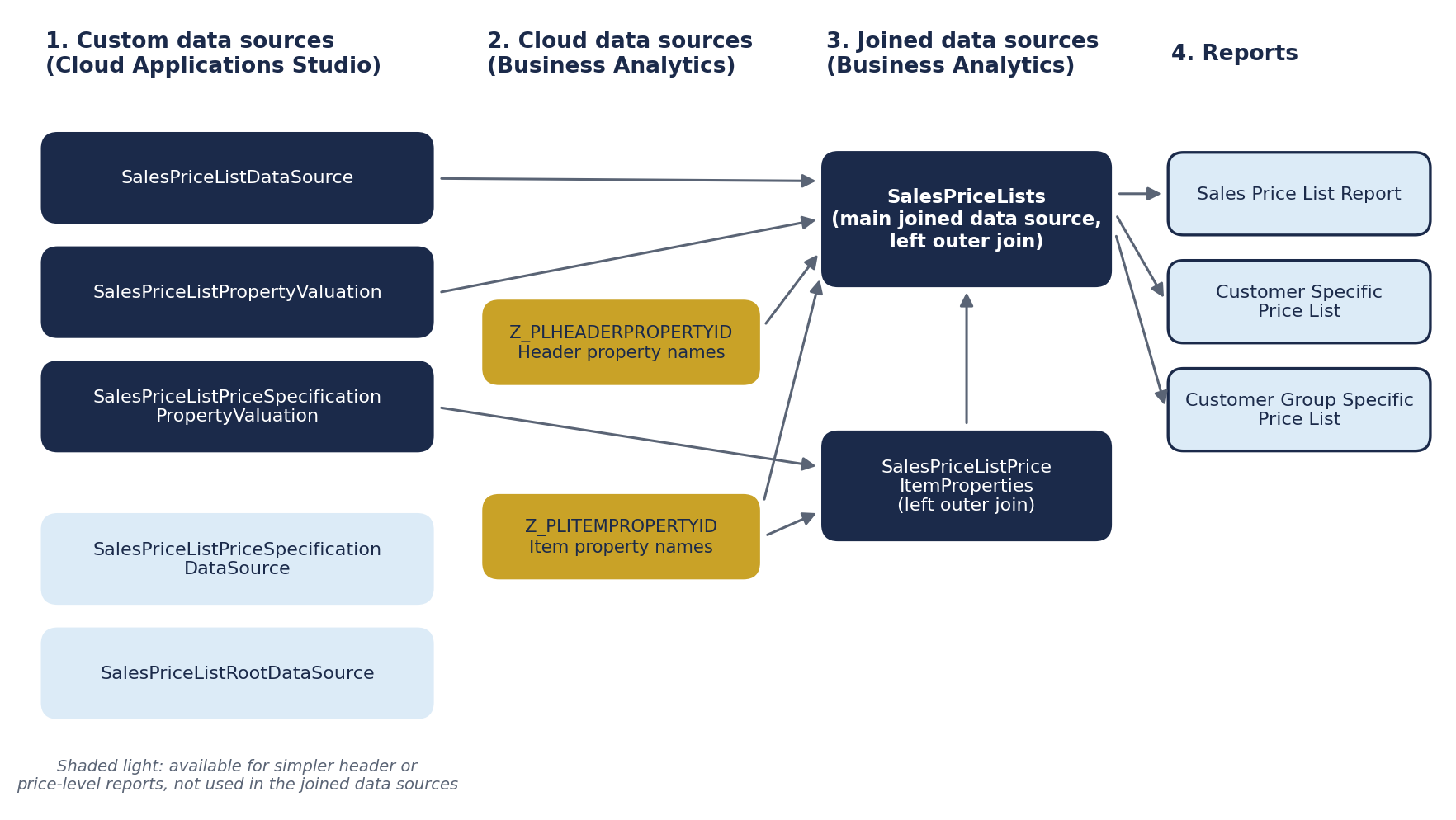
Figure 1. How the custom data sources, cloud data sources, joined data sources and reports fit together.
Before you start: two important limitations
Only data entered after deployment can be reported on. Only sales price lists created, or price list items modified, after the custom data sources have been deployed to the tenant are reportable. This is a feature of the system design, and SAP has confirmed that there is no way to avoid it. Deploy the solution as early as possible and plan how any existing price lists that must appear in reports will be brought into scope.
This remains a custom solution. SAP has confirmed that it does not currently plan to deliver standard data sources for sales price lists, owing to the structure of the underlying database. Not every price list type may be supported. Custom price list tables can be reported on, but with restrictions: for example, product IDs come through as text, so they cannot be joined to the product master data source to enrich the report, although other characteristics can be joined. Test each price list type you rely on.
Step 1: Create the solution and business option
In the Cloud Applications Studio, create a new customer-specific solution to hold the data sources. Then add a business option using the Business Configuration Wizard, so that the data sources can be switched on through scoping. Use the following settings:
| Setting | Value |
|---|---|
| Type of business configuration | Business Option |
| Name | PRICELISTDS |
| Description | Price List Data Sources |
| Scoping question | Do you want to use the price list data sources? |
| Visible in fine-tuning | Not selected |
| Documentation (overview) | Contains SalesPriceList BO data sources |
| Business Adaptation Catalogue anchor | Sales Price and Discount Lists |
| Required scope | Leave blank |
Review the entries on the second page of the wizard and select Finish. The wizard adds a business configuration file (.bac) to the solution, with the PRICELISTDS option assigned as its content.
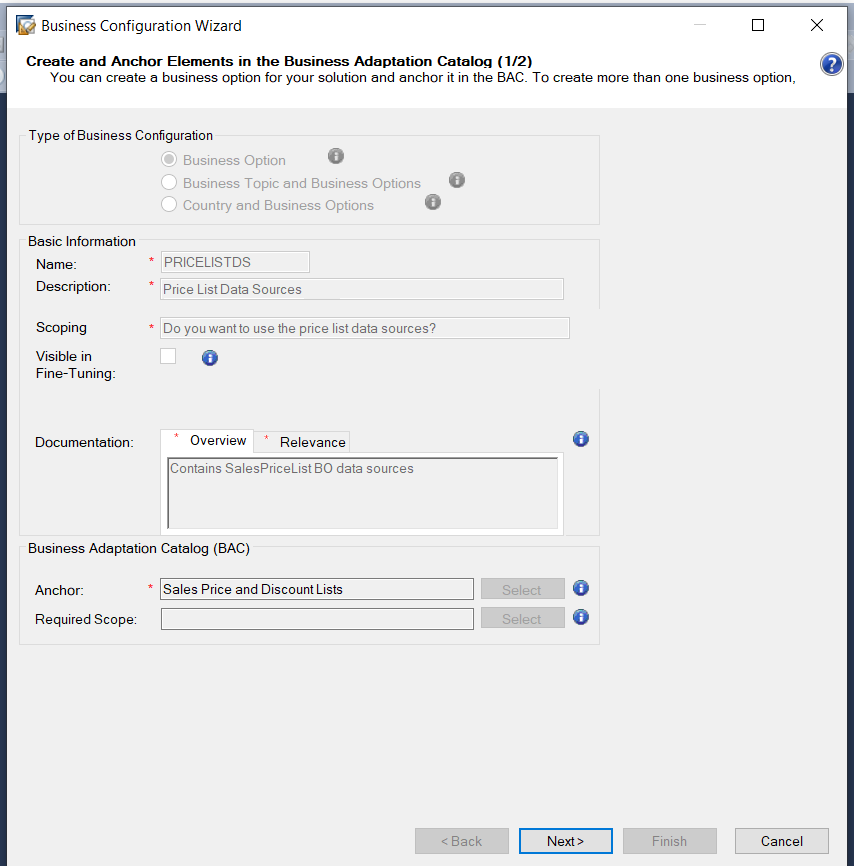
Figure 2. The first page of the Business Configuration Wizard, creating the PRICELISTDS business option and anchoring it to Sales Price and Discount Lists.
Step 2: Create the five custom data sources
Next, create five data sources in the solution, all based on the Sales Price List business object. Each one is anchored on a different node of the object, which determines the level of detail it returns. The basic information is the same for all five:
| Setting | Value |
|---|---|
| Namespace | http://sap.com/xi/AP/FO/PriceAndTax/Global |
| Business object | SalesPriceList |
| Enable access control | Selected |
| Allow referencing | Not selected |
| Log sensitive personal data | Not selected |
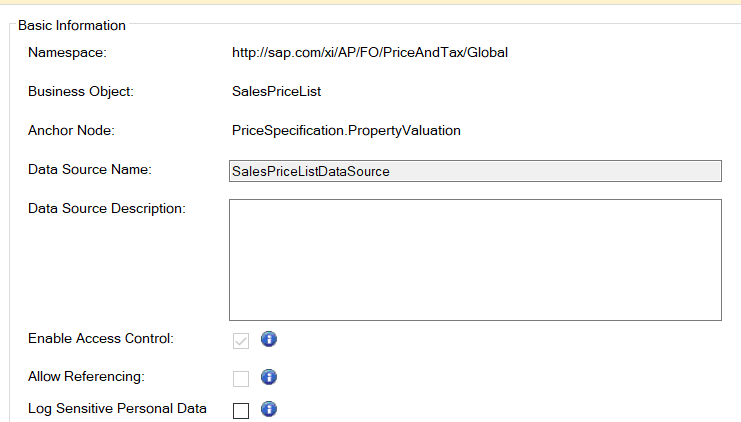
Figure 3. The header information for SalesPriceListDataSource, showing the namespace, business object and anchor node.
The five data sources, their anchor nodes and their roles in the solution are as follows:
| Data source name | Anchor node | Purpose |
|---|---|---|
SalesPriceListDataSource |
PriceSpecification.PropertyValuation |
The main item-level data source: one row per price list item property, with the price, validity and header details. |
SalesPriceListPriceSpecificationDataSource |
PriceSpecification (root of the node) |
Price specification level data with header details, for simpler price-level reports. |
SalesPriceListPriceSpecificationPropertyValuation |
PriceSpecification.PropertyValuation |
An item property data source, used to return a second item property for each price list. |
SalesPriceListPropertyValuation |
PropertyValuation |
Header-level properties, such as the account, customer group or sales organisation to which a price list applies. |
SalesPriceListRootDataSource |
Root | Price list header data only, for simple header reports. |
On the Data Source Fields tab of each data source, select the fields below. The "parent" and "grandparent" levels are reached by expanding the ToParent association in the field tree. In every case, leave the attachment folder, creation identity and last change identity nodes unselected.
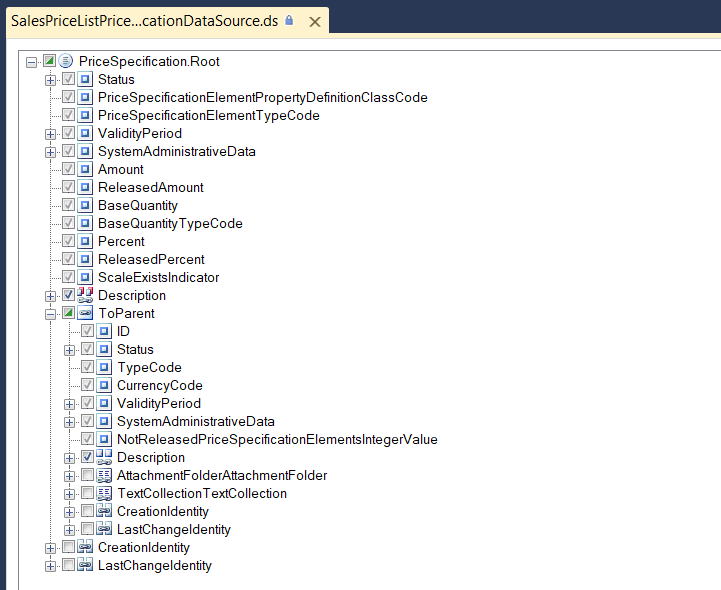
Figure 4. The Data Source Fields tab for SalesPriceListPriceSpecificationDataSource. The price specification fields are selected at the anchor level, and the price list header fields are selected under ToParent.
SalesPriceListDataSource
| Level | Fields to select |
|---|---|
| Property valuation (anchor) | PriceSpecificationElementPropertyValuation, including the property reference and property value |
| Price specification (parent) | Status, PriceSpecificationElementPropertyDefinitionClassCode, PriceSpecificationElementTypeCode, ValidityPeriod, SystemAdministrativeData, Amount, ReleasedAmount, BaseQuantity, BaseQuantityTypeCode, Percent, ReleasedPercent, ScaleExistsIndicator and Description |
| Price list header (grandparent) | ID, Status, TypeCode, CurrencyCode, ValidityPeriod, SystemAdministrativeData, NotReleasedPriceSpecificationElementsIntegerValue and Description |
SalesPriceListPriceSpecificationDataSource
| Level | Fields to select |
|---|---|
| Price specification (anchor) | Status, PriceSpecificationElementPropertyDefinitionClassCode, PriceSpecificationElementTypeCode, ValidityPeriod, SystemAdministrativeData, Amount, ReleasedAmount, BaseQuantity, BaseQuantityTypeCode, Percent, ReleasedPercent, ScaleExistsIndicator and Description |
| Price list header (parent) | ID, Status, TypeCode, CurrencyCode, ValidityPeriod, SystemAdministrativeData, NotReleasedPriceSpecificationElementsIntegerValue and Description |
SalesPriceListPriceSpecificationPropertyValuation
| Level | Fields to select |
|---|---|
| Property valuation (anchor) | PriceSpecificationElementPropertyValuation |
| Price specification (parent) | No fields |
| Price list header (grandparent) | ID only |
SalesPriceListPropertyValuation
| Level | Fields to select |
|---|---|
| Property valuation (anchor) | PriceSpecificationElementPropertyValuation and Description |
| Price list header (parent) | ID, TypeCode, CurrencyCode and Description |
SalesPriceListRootDataSource
| Level | Fields to select |
|---|---|
| Price list header (anchor) | ID, Status, TypeCode, CurrencyCode, ValidityPeriod, SystemAdministrativeData, NotReleasedPriceSpecificationElementsIntegerValue, Description and TextCollection |
It is worth taking the time to rename fields to friendlier names at this stage. This step is optional, but it makes the data sources considerably easier to work with when you build the joined data sources and reports.
When all five data sources are complete, activate the solution content and deploy the solution to the tenant. Then answer Yes to the scoping question "Do you want to use the price list data sources?" in business configuration, so that the business option is switched on.
Step 3: Create the two cloud data sources
Price lists identify their header and item properties with technical codes such as CND_BUYER_ID or CND_PRODUCT_ID, which mean little to report users. Two cloud data sources provide a simple lookup from each code to a friendly description. Create both in the Business Analytics work centre with the following settings:
| Setting | Header properties | Item properties |
|---|---|---|
| Data source ID | Z_PLHEADERPROPERTYID |
Z_PLITEMPROPERTYID |
| Name | SalesPriceListHeaderPropertyID |
SalesPriceListItemPropertyID |
| Usage | Master Data without Description | Master Data without Description |
| Manual data upload | Selected | Selected |
Each data source has two fields. In both cases the identifier is the primary key and the key for master data, and both fields are visible for reporting:
| Field ID | Field name | Data type | Length | Primary key |
|---|---|---|---|---|
HEADERPROPERTYID |
HeaderPropertyID | Char | 50 | Yes |
HEADERPROPERTYDESC |
Header Property | Char | 60 | No |
ITEMPROPERTYID |
Item Property ID | Char | 50 | Yes |
ITEMPROPERTYDESC |
Item Property | Char | 60 | No |
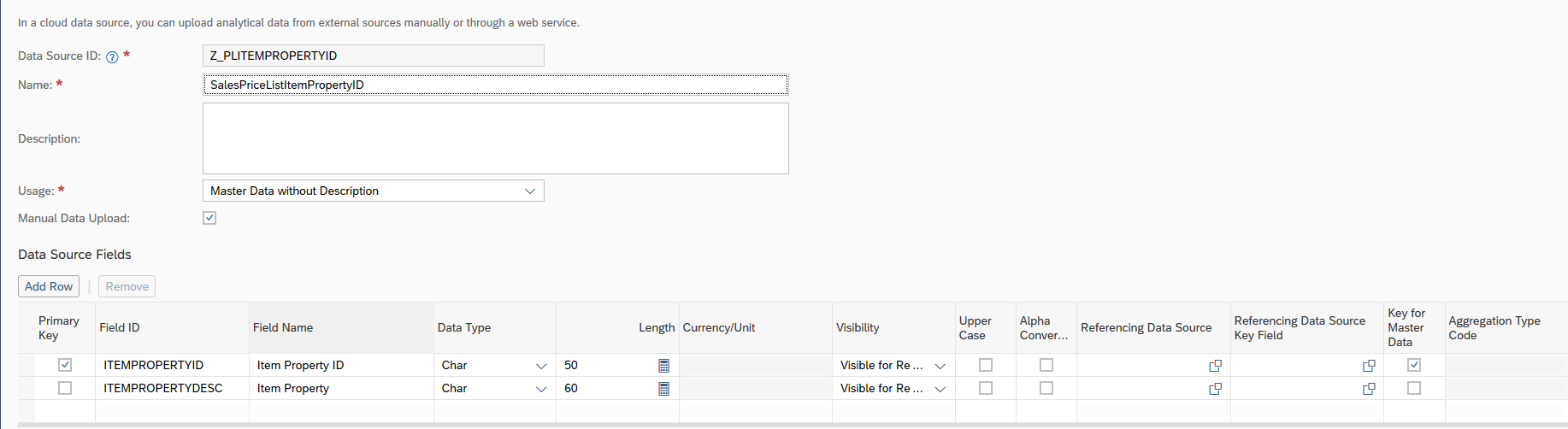
Figure 5. The Z_PLITEMPROPERTYID cloud data source, with ITEMPROPERTYID as the primary key and the key for master data.
Then upload the descriptions. The values below are those that have been used in practice and cover the properties of the standard price list types; extend them if your price lists use further properties.
Header property descriptions (Z_PLHEADERPROPERTYID)
| HEADERPROPERTYDESC | HEADERPROPERTYID |
|---|---|
| Sales Organisation | CND_SALES_ORG_ID |
| Distribution Channel | DISTR_CHANNEL |
| Currency | CDA_CURRENCY |
| Company | CND_COMPANY_ID |
| Customer Group | CDA_CUST_GROUP |
| Account ID | CND_BUYER_ID |
| Account Hierarchy ID | CND_BUYER_CAT_ID |
Item property descriptions (Z_PLITEMPROPERTYID)
| ITEMPROPERTYDESC | ITEMPROPERTYID |
|---|---|
| Account ID | CND_BUYER_ID |
| Product Category Hierarchy ID | CND_PRD_CAT_HIER_ID |
| Product Category | CND_PRD_CAT_ID |
| Product ID | CND_PRODUCT_ID |
| Product ID Type Code | CND_PRODUCT_ID_TYPE_CODE |
| Product Type Code | CND_PRODUCT_TYPE_CODE |
| Price List ID | PRC_PRICE_LIST |
| Sales Organisation | CND_SALES_ORG_ID |
Step 4: Create the joined data sources
Finally, two joined data sources bring everything together. Create them in the Business Analytics work centre, in the order shown, because the second uses the first. Both use a left outer join, so that price list rows are still returned when no matching description exists, and both use the Sales Price Maintenance access context (context 8).
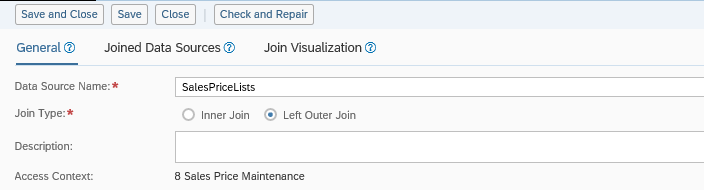
Figure 6. The General tab of a joined data source, with Left Outer Join selected and the Sales Price Maintenance access context applied.
4a. SalesPriceListPriceItemProperties
This joined data source returns a second item property, with its description, for each price list. It joins the item property data source to the item property descriptions:
| Role | Data source | Join field |
|---|---|---|
| Left (base) | SalesPriceListPriceSpecificationPropertyValuation |
Item property ID |
| Right | SalesPriceListItemPropertyID (Z_PLITEMPROPERTYID) |
ITEMPROPERTYID |
Map the fields so that they can be distinguished from the main item property later on:
| Field in joined data source | Source |
|---|---|
| Sales Price List ID | Sales price list ID from the property valuation data source |
| Item Property 2 ID | Item property ID from the property valuation data source |
| Item Property 2 Value | Item property value from the property valuation data source |
| Item Property 2 Value Code | Item property value code from the property valuation data source |
| Item Property 2 | Item property description from Z_PLITEMPROPERTYID |
The data source also includes the standard Counter key figure.
4b. SalesPriceLists
This is the main data source on which the reports are built. It takes SalesPriceListDataSource as its base and joins the other four data sources to it:
| Joined data source | Joined on |
|---|---|
SalesPriceListPropertyValuation |
Its sales price list ID = the sales price list ID in SalesPriceListDataSource |
SalesPriceListHeaderPropertyID (Z_PLHEADERPROPERTYID) |
HEADERPROPERTYID = the element property ID in SalesPriceListPropertyValuation |
SalesPriceListItemPropertyID (Z_PLITEMPROPERTYID) |
ITEMPROPERTYID = the item property ID in SalesPriceListDataSource |
SalesPriceListPriceItemProperties |
Its sales price list ID = the sales price list ID in SalesPriceListDataSource |
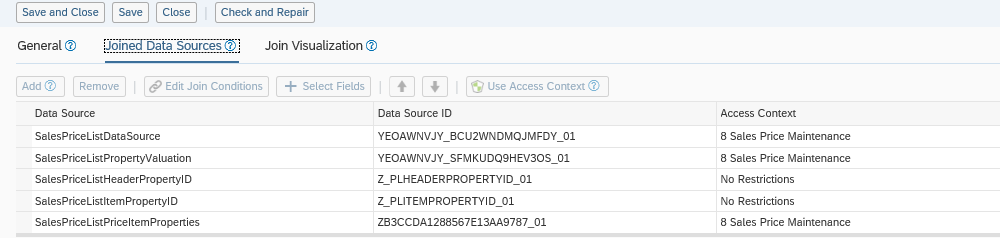
Figure 7. The Joined Data Sources tab of SalesPriceLists, listing the five data sources it combines.
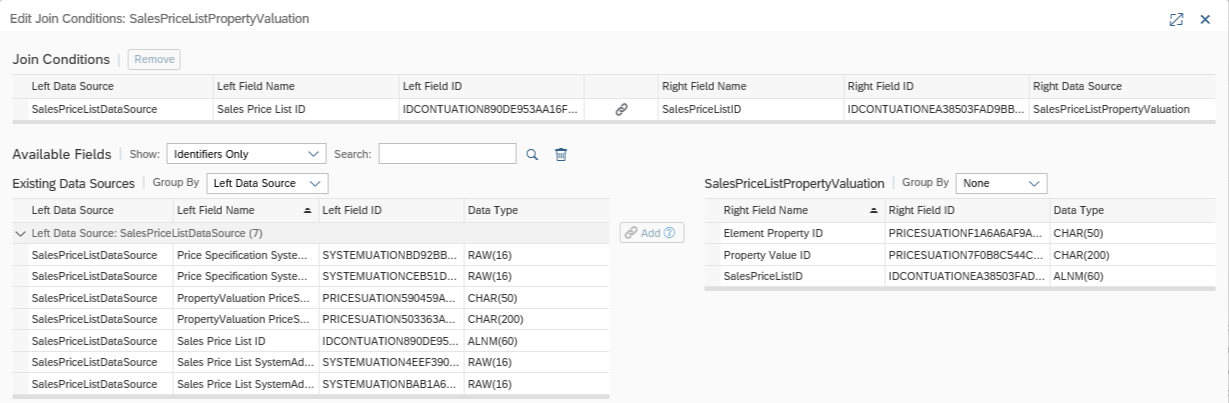
Figure 8. The join condition between SalesPriceListDataSource and SalesPriceListPropertyValuation, linking the two on the sales price list ID.
The resulting data source contains around 50 characteristics. The most useful for reporting are:
- Price list header: Price List ID, Sales Price List Description, Sales Price List TypeCode, Currency, Release Status, Approval Status and the price list validity dates.
- Header properties: Header Property ID, Header Property (the friendly description), Header Property Value and Property Value Code, which together identify the account, customer group, sales organisation or other header criteria.
- Item properties: Item Property ID, Item Property, Item Property Value and Item Property Value Code, plus the Item Property 2 fields from step 4a.
- Price details: Price List Type, Valid From, Valid To, Base Quantity Unit Code, Amount Currency Code and the scale indicator.
The key figures are Amount, BaseQuantity, Percent, ReleasedAmount, ReleasedPercent, NotReleasedPriceSpecificationElementsIntegerValue and Counter. In practice, three formula key figures are also added, Price Amount, Price Quantity and Price %, to present the price values in a report-friendly form; define these to suit your own reporting layout.
Step 5: Build the reports
With SalesPriceLists in place, reports can be designed in the usual way. In practice, a general Sales Price List Report is created first, together with reports for the standard price list types, such as Customer Specific Price List and Customer Group Specific Price List. These are assigned to the report category Sales and Marketing, Sales Price Maintenance, so that they appear alongside the price maintenance work.
Each type-specific report is filtered on the price list type, and the header and item property fields are presented under business-friendly column names. For example, the Customer Specific Price List report uses the following layout:
| Column | Content |
|---|---|
| Sales Price List ID | The price list identifier |
| Release Status | Whether the price list has been released |
| Valid From / Valid To | The validity period of the price |
| Currency | The price list currency |
| Account ID and Account Name | The customer to which the price list applies, taken from the header property |
| Product ID | The product, taken from the item property |
| Pricing Quantity | The unit of measure for the price, for example Case |
| Price Amount and Base Quantity | The price and the quantity to which it applies |
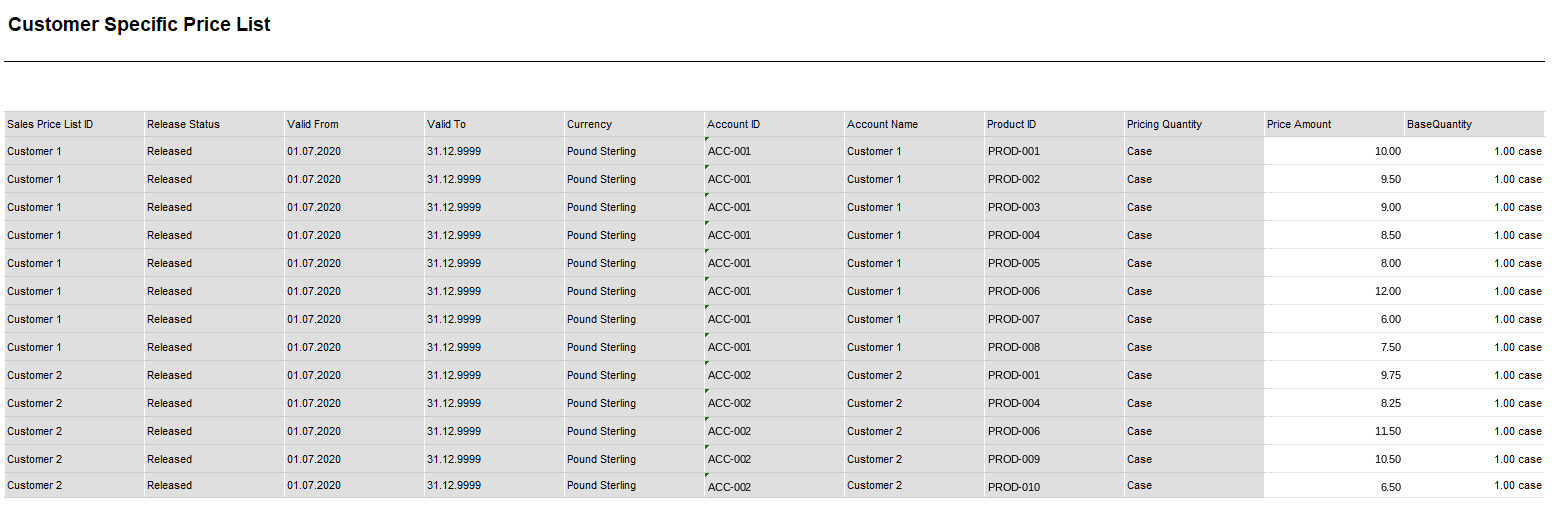
Figure 9. Example output from the Customer Specific Price List report. The account IDs, product IDs and prices shown are illustrative.
Practical tips
- Deploy early. Because only data entered after deployment is reportable, the sooner the custom data sources are in the tenant, the more complete your reports will be.
- Check row counts as you go. Use the preview in each joined data source, together with the Counter key figure, to confirm that each join returns the number of rows you expect before you build reports on top of it.
- Test each price list type. Standard and custom price list tables behave differently, so test every type that your business relies on, particularly any custom price tables.
- Keep the description files. Retain the upload files for the two cloud data sources, so that they can be extended quickly if new header or item properties are introduced.
Looking ahead
With SAP Business ByDesign delisted for new customers in 2026, many existing customers are now evaluating a move to SAP S/4HANA Public Cloud. In SAP S/4HANA Public Cloud, sales prices are held as pricing condition records and can be maintained and reviewed through standard apps such as Manage Prices - Sales, so a workaround of this kind should not need to be rebuilt in the same form.
Custom data sources and reports such as these are exactly the kind of item worth cataloguing during a migration Discovery Phase, so that each one is either retired in favour of standard functionality or rebuilt deliberately.